JimLiu
Install Baoyu Article Illustrator
Pick your agent. Every command is ready to paste.
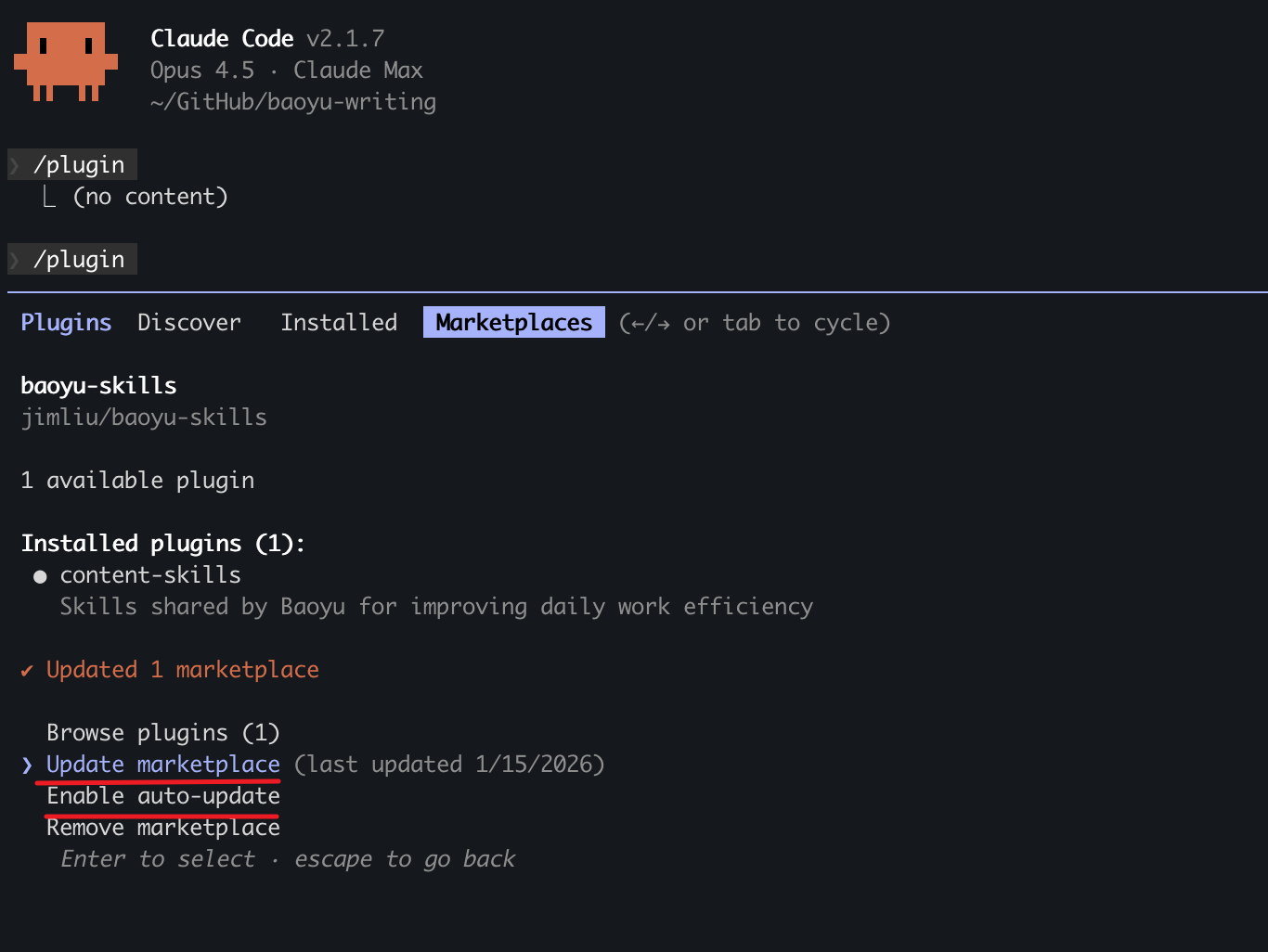
npx skills add JimLiu/baoyu-skills --skill baoyu-article-illustratorThe open skills CLI detects your agents (Claude Code, Cursor, Codex and 70+ more) and installs to the right folder. Add -g to install globally.
01
Install it
Run the command above, or upload the folder in Claude.
02
Ask naturally
Describe the task. Your agent loads baoyu-article-illustrator when the request matches its description.
03
Name it if needed
If it does not trigger, say “use the baoyu-article-illustrator skill”. In Codex, type $baoyu-article-illustrator.
The skill itself
SKILL.md
Article Illustrator
User Input Tools
When this skill prompts the user, follow this tool-selection rule (priority order):
- Prefer built-in user-input tools exposed by the current agent runtime — e.g.,
AskUserQuestion,request_user_input,clarify,ask_user, or any equivalent. - Fallback: if no such tool exists, emit a numbered plain-text message and ask the user to reply with the chosen number/answer for each question.
- Batching: if the tool supports multiple questions per call, combine all applicable questions into a single call; if only single-question, ask them one at a time in priority order.
Concrete AskUserQuestion references below are examples — substitute the local equivalent in other runtimes.
Image Generation Tools
Resolve the image backend in this order:
- User names a backend in the current message → use it.
preferred_image_backendinEXTEND.mdnames a backend available now → use it.askmeans ask every run.- Auto-select (preference
auto, unset, or the pinned backend is unavailable), first match wins:- Codex
imagegenskill is in your available skills → you are in Codex and MUST use it:Skillwithskill: "imagegen", passing the prompt file's content plus output path and aspect ratio. It outranks non-native skills such asbaoyu-image-gen. - Codex via
codex exec(codex-imagegen): no nativeimagegen, but thecodexCLI is onPATHwith an activecodex login→baoyu-image-gen --provider codex-cli(preferred), or the bundled wrapper if baoyu-image-gen is unavailable. Load references/codex-imagegen.md only for this branch. - Cursor
GenerateImage→ use it (outranks non-native skills). It has no aspect-ratio parameter, so state the aspect ratio / dimensions in thedescriptionprompt; it saves to a tool-managed location, so copy the file to the expected output path (e.g.,outputs/.../NN-xxx.png). Reference images go inreference_image_paths. - Other runtime-native image tool (e.g., Hermes
image_generate) → use it the same way. - Exactly one non-native backend installed (e.g.,
baoyu-image-gen) → use it. - Several non-native backends → ask the user once, batched with other initial questions.
- Codex
- None available → tell the user and ask how to proceed.
⛔ Raster only: never substitute SVG, HTML/CSS, canvas, or other code-based rendering for a raster image, even for diagram-like content. If no raster backend resolves, go to step 4.
⛔ No bitmap text patching: never use ImageMagick, Pillow, Canvas, SVG, HTML/CSS, OCR scripts, or any other overlay to cover, rewrite, erase, stroke, or replace labels, captions, or any other text inside an already generated illustration. Regenerate from a corrected prompt, redraw with less or no on-image text, or ask the user which imperfect candidate to keep.
Prompt file (hard): before invoking any backend, write each image's full, final prompt to its own file under prompts/ (NN-{type}-[slug].md) and pass that file (or its content) to the backend. It is the reproducibility record and lets you switch backends without rewriting prompts.
Change the pinned backend via ## Changing Preferences below. Tool names above are examples; use the local equivalent in other runtimes.
Batch Generation Policy
After every prompt file for the run has been saved and verified, generate images in batches by default:
- Use the chosen backend's native batch / multi-task interface if it exists. Each task keeps its own prompt file, output path, aspect ratio, and direct reference images.
- Otherwise, if the runtime can issue parallel tool calls, dispatch up to
generation_batch_sizeimages at a time (default4). An explicit request in the current message (--batch-size 4, "并行4张一起生成") overrides EXTEND.md. - Otherwise generate sequentially.
- Never start a batch until all its prompt files exist on disk.
- Retry failed items once without regenerating successful ones.
- Don't use subagents just to parallelize rendering; only for separate per-image prompt iteration or creative exploration.
Confirmation Policy
Default: confirm before generation.
- Explicit skill invocation, a file path, matched signals/presets, and
EXTEND.mddefaults are recommendation inputs only — none authorizes skipping confirmation. - Do not start Step 4 or later until the user completes Step 3.
- Skip confirmation only when the current request explicitly says so ("直接生成", "不用确认", "跳过确认", "按默认出图", or equivalent). Then state the assumed type / density / style / palette / language / backend in the next user-facing update before generating.
Reference Images
Users may supply refs via --ref <files...>, file paths, or pasted images; they guide style, palette, composition, or subject. Step 1.0 in references/workflow.md saves them to references/NN-ref-{slug}.{ext}; Step 5.3 processes per-illustration usage direct | style | palette. When the backend supports batch input, propagate direct entries from each prompt file's references: frontmatter into its batch task (e.g. baoyu-image-gen accepts ref per task).
Three Dimensions
| Dimension | Controls | Values |
|---|---|---|
| Type | Information structure | infographic (data, metrics, technical), scene (narrative, emotional), flowchart (processes), comparison (side-by-side), framework (models, architecture), timeline (history, evolution) |
| Style | Rendering approach | See references/styles.md (Core Styles, gallery, Type × Style compatibility) |
| Palette | Color scheme (optional) | macaron, warm, neon — overrides style's default colors |
Combine freely (--type infographic --style vector-illustration --palette macaron) or use --preset edu-visual for type + style + palette in one flag (references/style-presets.md). Command syntax and options: references/usage.md.
Workflow
- [ ] Step 1: Pre-check (EXTEND.md, references, config)
- [ ] Step 2: Analyze content
- [ ] Step 3: Confirm settings (AskUserQuestion)
- [ ] Step 4: Generate outline
- [ ] Step 5: Generate images
- [ ] Step 6: Finalize
Detailed procedures for every step: references/workflow.md.
Step 1: Pre-check
1.5 Load Preferences (EXTEND.md) ⛔ BLOCKING — first match wins:
| Priority | Path | Scope |
|---|---|---|
| 1 | .baoyu-skills/baoyu-article-illustrator/EXTEND.md |
Project |
| 2 | ${XDG_CONFIG_HOME:-$HOME/.config}/baoyu-skills/baoyu-article-illustrator/EXTEND.md |
XDG |
| 3 | $HOME/.baoyu-skills/baoyu-article-illustrator/EXTEND.md |
User home |
Found → read, parse, display summary. Not found → ⛔ run first-time-setup before anything else.
Also: save reference images (1.0), determine input type and output dir (1.1–1.4). See workflow.md.
Step 2: Analyze
Determine content type (Technical / Tutorial / Methodology / Narrative), purpose (information / visualization / imagination), 2-5 core arguments, and positions where illustrations add value. Metaphors → visualize the underlying concept, never the literal image. See workflow.md.
Step 3: Confirm Settings ⚠️
Hard gate per the Confirmation Policy. ONE AskUserQuestion, max 4 Qs. Q1-Q2 required; Q3 required unless a preset was chosen.
| Q | Options |
|---|---|
| Q1: Preset or Type | [Recommended preset], [alt preset], or manual: infographic, scene, flowchart, comparison, framework, timeline, mixed |
| Q2: Density | minimal (1-2), balanced (3-5), per-section (Recommended), rich (6+) |
| Q3: Style | [Recommended], minimal-flat, sci-fi, hand-drawn, editorial, scene, poster, Other — skip if preset chosen |
| Q4: Palette | Default (style colors), macaron, warm, neon — skip if preset includes palette or preferred_palette set |
| Q5: Language | When article language ≠ EXTEND.md setting |
See workflow.md.
Step 4: Generate Outline
Save outline.md with frontmatter (type, density, style, palette, image_count) and one entry per illustration (Position, Purpose, Visual Content, Filename 01-infographic-concept-name.png). Template: workflow.md.
Step 5: Generate Images
⛔ Prompt files MUST be saved before ANY image generation, whatever the backend.
- Per illustration, write
prompts/NN-{type}-{slug}.md(YAML frontmatter) per references/prompt-construction.md: type-specific template with ZONES / LABELS / COLORS / STYLE / ASPECT; LABELS use article-specific data (actual numbers, terms, metrics, quotes). Never pass ad-hoc inline prompts to--promptwithout saving prompt files first. - Select the backend once per session via
## Image Generation Tools. Forcodex-imagegen, see references/codex-imagegen.md. - Process references (
direct/style/palette) per prompt frontmatter; apply watermark if EXTEND.md enables it. - Generate from saved prompt files per
## Batch Generation Policy; retry once on failure.
See workflow.md.
Step 6: Finalize
Insert  after the corresponding paragraph (path relative to the article file, per Output Directory), then print the completion summary (workflow.md).
Output Directory
Set by default_output_dir in EXTEND.md:
default_output_dir |
Output Path | Markdown Insert Path |
|---|---|---|
imgs-subdir (default) |
{article-dir}/imgs/ |
imgs/NN-{type}-{slug}.png |
same-dir |
{article-dir}/ |
NN-{type}-{slug}.png |
illustrations-subdir |
{article-dir}/illustrations/ |
illustrations/NN-{type}-{slug}.png |
independent |
illustrations/{topic-slug}/ |
illustrations/{topic-slug}/NN-{type}-{slug}.png (relative to cwd) |
{output-dir}/
├── outline.md
├── prompts/
│   └── NN-{type}-{slug}.md
└── NN-{type}-{slug}.png
Pasted content (no file path) always uses illustrations/{topic-slug}/ with source-{slug}.{ext} saved alongside. Slug: 2-4 words, kebab-case. Conflict: append -YYYYMMDD-HHMMSS.
Modification
| Action | Steps |
|---|---|
| Edit | Update prompt → Regenerate → Update reference |
| Add | Position → Prompt → Generate → Update outline → Insert |
| Delete | Delete files → Remove reference → Update outline |
Text correction: never patch misspelled, garbled, or weak rendered text in the bitmap with code. Write a new prompt file and a new output path so the flawed candidate is kept for comparison. Post-processing is limited to crop, resize, compression, or format conversion that doesn't alter text or composition.
Changing Preferences
EXTEND.md lives at the first matching path in Step 1.5. Edit it directly (schema: references/config/preferences-schema.md), or delete it / ask "reconfigure baoyu-article-illustrator preferences" / "重新配置" to re-run first-time setup. Common edits:
preferred_image_backend:auto(default; runtime-native wins, else the only installed backend, ask if multiple non-native) |codex-imagegen|baoyu-image-gen|ask(confirm every run)generation_batch_size: 4— concurrent renders when parallel calls are supportedpreferred_type: infographic,preferred_style: notion,preferred_palette: macaron,language: zhdefault_output_dir: imgs-subdir
Tips for Baoyu Article Illustrator
- • Start a fresh session after installing so your agent picks up the new skill.
- • It bundles reference files. The agent reads them only when needed, so they cost no context until then.
- • It is part of a pack with 22 skills. Install only the ones you need with --skill to keep triggers precise.
- • If two skills overlap, mention the one you want by name.
Questions about Baoyu Article Illustrator
What does the Baoyu Article Illustrator skill do?
Analyzes article structure, identifies positions requiring visual aids, generates illustrations with Type × Style × Palette three-dimension approach. Use when user asks to "illustrate article", "add images", "generate images for article", or "为文章配图".
How do I install Baoyu Article Illustrator?
Run "npx skills add JimLiu/baoyu-skills --skill baoyu-article-illustrator" in your project. The skills CLI installs it for Claude Code, Cursor, Codex and 70+ other agents. In Claude on the web, upload the skill folder as a ZIP under Customize > Skills.
Does Baoyu Article Illustrator work in Cursor and Codex?
Yes. Baoyu Article Illustrator uses the open SKILL.md format, so it works in Claude Code, Claude, Cursor, OpenAI Codex, Gemini CLI, GitHub Copilot and other agents that support agent skills.
Is Baoyu Article Illustrator free?
Baoyu Article Illustrator is open source on GitHub under the MIT license. It is free to install; check the license before commercial use.
Who made Baoyu Article Illustrator?
Baoyu Article Illustrator is published by JimLiu in the JimLiu/baoyu-skills repository, together with 21 other skills.