freshtechbro
Install Playcanvas Engine
Pick your agent. Every command is ready to paste.
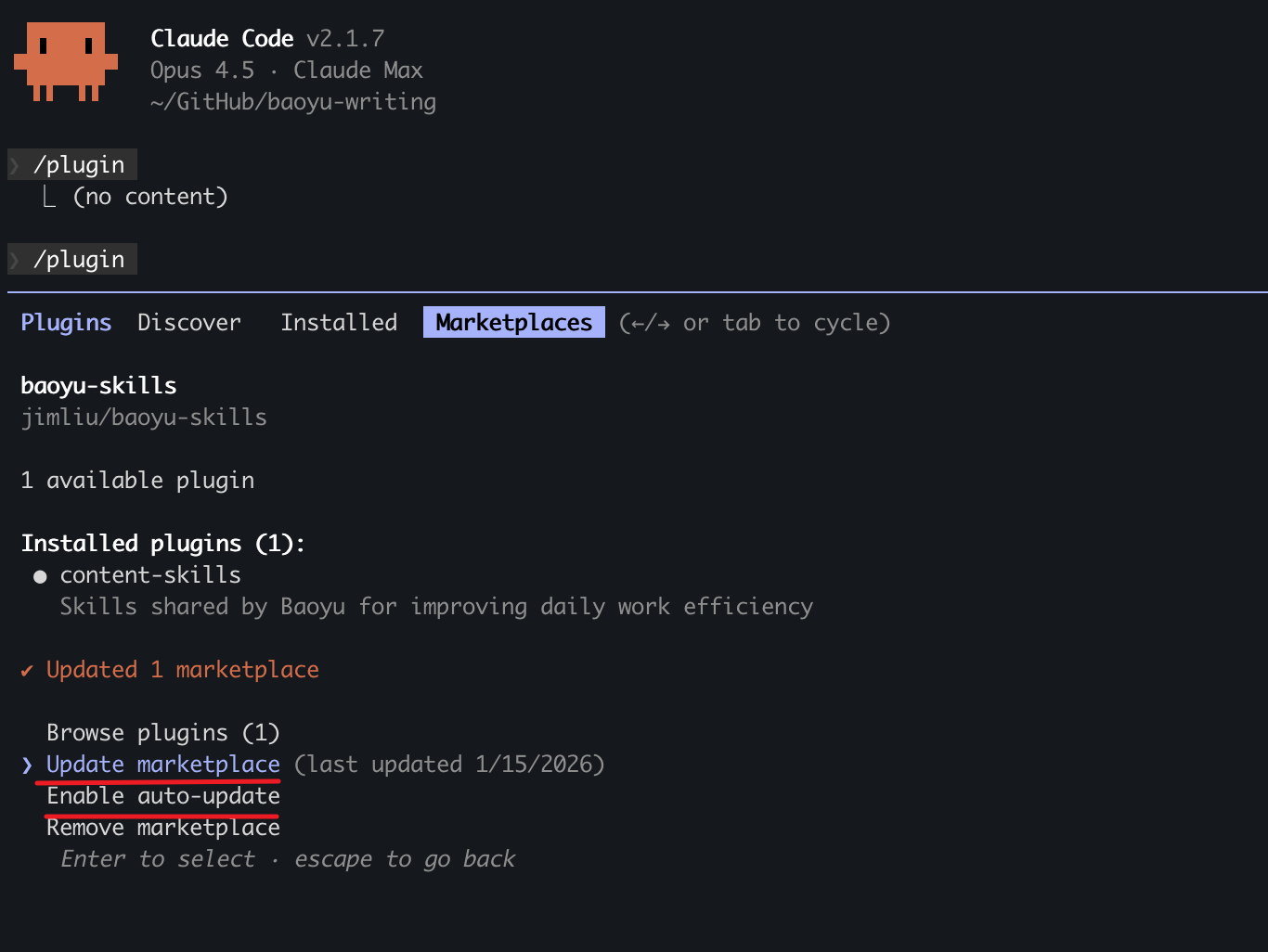
npx skills add freshtechbro/claudedesignskills --skill playcanvas-engineThe open skills CLI detects your agents (Claude Code, Cursor, Codex and 70+ more) and installs to the right folder. Add -g to install globally.
01
Install it
Run the command above, or upload the folder in Claude.
02
Ask naturally
Describe the task. Your agent loads playcanvas-engine when the request matches its description.
03
Name it if needed
If it does not trigger, say “use the playcanvas-engine skill”. In Codex, type $playcanvas-engine.
PlayCanvas Engine Skill
Lightweight WebGL/WebGPU game engine with entity-component architecture, visual editor integration, and performance-focused design.
When to Use This Skill
Trigger this skill when you see:
- "PlayCanvas engine"
- "WebGL game engine"
- "entity component system"
- "PlayCanvas application"
- "3D browser games"
- "online 3D editor"
- "lightweight 3D engine"
- Need for editor-first workflow
Compare with:
- Three.js: Lower-level, more flexible but requires more setup
- Babylon.js: Feature-rich but heavier, has editor but less mature
- A-Frame: VR-focused, declarative HTML approach
- Use PlayCanvas for: Game projects, editor-first workflow, performance-critical apps
Core Concepts
1. Application
The root PlayCanvas application manages the rendering loop.
import * as pc from 'playcanvas';

// Create canvas
const canvas = document.createElement('canvas');
document.body.appendChild(canvas);

// Create application
const app = new pc.Application(canvas, {
  keyboard: new pc.Keyboard(window),
  mouse: new pc.Mouse(canvas),
  touch: new pc.TouchDevice(canvas),
  gamepads: new pc.GamePads()
});

// Configure canvas
app.setCanvasFillMode(pc.FILLMODE_FILL_WINDOW);
app.setCanvasResolution(pc.RESOLUTION_AUTO);

// Handle resize
window.addEventListener('resize', () => app.resizeCanvas());

// Start the application
app.start();
2. Entity-Component System
PlayCanvas uses ECS architecture: Entities contain Components.
// Create entity
const entity = new pc.Entity('myEntity');

// Add to scene hierarchy
app.root.addChild(entity);

// Add components
entity.addComponent('model', {
  type: 'box'
});

entity.addComponent('script');

// Transform
entity.setPosition(0, 1, 0);
entity.setEulerAngles(0, 45, 0);
entity.setLocalScale(2, 2, 2);

// Parent-child hierarchy
const parent = new pc.Entity('parent');
const child = new pc.Entity('child');
parent.addChild(child);
3. Update Loop
The application fires events during the update loop.
app.on('update', (dt) => {
  // dt is delta time in seconds
  entity.rotate(0, 10 * dt, 0);
});

app.on('prerender', () => {
  // Before rendering
});

app.on('postrender', () => {
  // After rendering
});
4. Components
Core components extend entity functionality:
Model Component:
entity.addComponent('model', {
  type: 'box',           // 'box', 'sphere', 'cylinder', 'cone', 'capsule', 'asset'
  material: material,
  castShadows: true,
  receiveShadows: true
});
Camera Component:
entity.addComponent('camera', {
  clearColor: new pc.Color(0.1, 0.2, 0.3),
  fov: 45,
  nearClip: 0.1,
  farClip: 1000,
  projection: pc.PROJECTION_PERSPECTIVE  // or PROJECTION_ORTHOGRAPHIC
});
Light Component:
entity.addComponent('light', {
  type: pc.LIGHTTYPE_DIRECTIONAL,  // DIRECTIONAL, POINT, SPOT
  color: new pc.Color(1, 1, 1),
  intensity: 1,
  castShadows: true,
  shadowDistance: 50
});
Rigidbody Component (requires physics):
entity.addComponent('rigidbody', {
  type: pc.BODYTYPE_DYNAMIC,  // STATIC, DYNAMIC, KINEMATIC
  mass: 1,
  friction: 0.5,
  restitution: 0.3
});

entity.addComponent('collision', {
  type: 'box',
  halfExtents: new pc.Vec3(0.5, 0.5, 0.5)
});
Common Patterns
Pattern 1: Basic Scene Setup
Create a complete scene with camera, light, and models.
import * as pc from 'playcanvas';

// Initialize application
const canvas = document.createElement('canvas');
document.body.appendChild(canvas);

const app = new pc.Application(canvas);
app.setCanvasFillMode(pc.FILLMODE_FILL_WINDOW);
app.setCanvasResolution(pc.RESOLUTION_AUTO);
window.addEventListener('resize', () => app.resizeCanvas());

// Create camera
const camera = new pc.Entity('camera');
camera.addComponent('camera', {
  clearColor: new pc.Color(0.2, 0.3, 0.4)
});
camera.setPosition(0, 2, 5);
camera.lookAt(0, 0, 0);
app.root.addChild(camera);

// Create directional light
const light = new pc.Entity('light');
light.addComponent('light', {
  type: pc.LIGHTTYPE_DIRECTIONAL,
  castShadows: true
});
light.setEulerAngles(45, 30, 0);
app.root.addChild(light);

// Create ground
const ground = new pc.Entity('ground');
ground.addComponent('model', {
  type: 'plane'
});
ground.setLocalScale(10, 1, 10);
app.root.addChild(ground);

// Create cube
const cube = new pc.Entity('cube');
cube.addComponent('model', {
  type: 'box',
  castShadows: true
});
cube.setPosition(0, 1, 0);
app.root.addChild(cube);

// Animate cube
app.on('update', (dt) => {
  cube.rotate(10 * dt, 20 * dt, 30 * dt);
});

app.start();
Pattern 2: Loading GLTF Models
Load external 3D models with asset management.
// Create asset for model
const modelAsset = new pc.Asset('model', 'container', {
  url: '/models/character.glb'
});

// Add to asset registry
app.assets.add(modelAsset);

// Load asset
modelAsset.ready((asset) => {
  // Create entity from loaded model
  const entity = asset.resource.instantiateRenderEntity();

  app.root.addChild(entity);

  // Scale and position
  entity.setLocalScale(2, 2, 2);
  entity.setPosition(0, 0, 0);
});

app.assets.load(modelAsset);
With error handling:
modelAsset.ready((asset) => {
  console.log('Model loaded:', asset.name);
  const entity = asset.resource.instantiateRenderEntity();
  app.root.addChild(entity);
});

modelAsset.on('error', (err) => {
  console.error('Failed to load model:', err);
});

app.assets.load(modelAsset);
Pattern 3: Materials and Textures
Create custom materials with PBR workflow.
// Create material
const material = new pc.StandardMaterial();
material.diffuse = new pc.Color(1, 0, 0);  // Red
material.metalness = 0.5;
material.gloss = 0.8;
material.update();

// Apply to entity
entity.model.material = material;

// With textures
const textureAsset = new pc.Asset('diffuse', 'texture', {
  url: '/textures/brick_diffuse.jpg'
});

app.assets.add(textureAsset);
app.assets.load(textureAsset);

textureAsset.ready((asset) => {
  material.diffuseMap = asset.resource;
  material.update();
});

// PBR material with all maps
const pbrMaterial = new pc.StandardMaterial();

// Load all textures
const textures = {
  diffuse: '/textures/albedo.jpg',
  normal: '/textures/normal.jpg',
  metalness: '/textures/metalness.jpg',
  gloss: '/textures/roughness.jpg',
  ao: '/textures/ao.jpg'
};

Object.keys(textures).forEach(key => {
  const asset = new pc.Asset(key, 'texture', { url: textures[key] });
  app.assets.add(asset);

  asset.ready((loadedAsset) => {
    switch(key) {
      case 'diffuse':
        pbrMaterial.diffuseMap = loadedAsset.resource;
        break;
      case 'normal':
        pbrMaterial.normalMap = loadedAsset.resource;
        break;
      case 'metalness':
        pbrMaterial.metalnessMap = loadedAsset.resource;
        break;
      case 'gloss':
        pbrMaterial.glossMap = loadedAsset.resource;
        break;
      case 'ao':
        pbrMaterial.aoMap = loadedAsset.resource;
        break;
    }
    pbrMaterial.update();
  });

  app.assets.load(asset);
});
Pattern 4: Physics Integration
Use Ammo.js for physics simulation.
import * as pc from 'playcanvas';

// Initialize with Ammo.js
const app = new pc.Application(canvas, {
  keyboard: new pc.Keyboard(window),
  mouse: new pc.Mouse(canvas)
});

// Load Ammo.js
const ammoScript = document.createElement('script');
ammoScript.src = 'https://cdn.jsdelivr.net/npm/ammo.js@0.0.10/ammo.js';
document.body.appendChild(ammoScript);

ammoScript.onload = () => {
  Ammo().then((AmmoLib) => {
    window.Ammo = AmmoLib;

    // Create static ground
    const ground = new pc.Entity('ground');
    ground.addComponent('model', { type: 'plane' });
    ground.setLocalScale(10, 1, 10);

    ground.addComponent('rigidbody', {
      type: pc.BODYTYPE_STATIC
    });

    ground.addComponent('collision', {
      type: 'box',
      halfExtents: new pc.Vec3(5, 0.1, 5)
    });

    app.root.addChild(ground);

    // Create dynamic cube
    const cube = new pc.Entity('cube');
    cube.addComponent('model', { type: 'box' });
    cube.setPosition(0, 5, 0);

    cube.addComponent('rigidbody', {
      type: pc.BODYTYPE_DYNAMIC,
      mass: 1,
      friction: 0.5,
      restitution: 0.5
    });

    cube.addComponent('collision', {
      type: 'box',
      halfExtents: new pc.Vec3(0.5, 0.5, 0.5)
    });

    app.root.addChild(cube);

    // Apply force
    cube.rigidbody.applyForce(10, 0, 0);
    cube.rigidbody.applyTorque(0, 10, 0);

    app.start();
  });
};
Pattern 5: Custom Scripts
Create reusable script components.
// Define script class
const RotateScript = pc.createScript('rotate');

// Script attributes (editor-exposed)
RotateScript.attributes.add('speed', {
  type: 'number',
  default: 10,
  title: 'Rotation Speed'
});

RotateScript.attributes.add('axis', {
  type: 'vec3',
  default: [0, 1, 0],
  title: 'Rotation Axis'
});

// Initialize method
RotateScript.prototype.initialize = function() {
  console.log('RotateScript initialized');
};

// Update method (called every frame)
RotateScript.prototype.update = function(dt) {
  this.entity.rotate(
    this.axis.x * this.speed * dt,
    this.axis.y * this.speed * dt,
    this.axis.z * this.speed * dt
  );
};

// Cleanup
RotateScript.prototype.destroy = function() {
  console.log('RotateScript destroyed');
};

// Usage
const entity = new pc.Entity('rotatingCube');
entity.addComponent('model', { type: 'box' });
entity.addComponent('script');
entity.script.create('rotate', {
  attributes: {
    speed: 20,
    axis: new pc.Vec3(0, 1, 0)
  }
});
app.root.addChild(entity);
Script lifecycle methods:
const MyScript = pc.createScript('myScript');

MyScript.prototype.initialize = function() {
  // Called once after all resources are loaded
};

MyScript.prototype.postInitialize = function() {
  // Called after all entities have initialized
};

MyScript.prototype.update = function(dt) {
  // Called every frame before rendering
};

MyScript.prototype.postUpdate = function(dt) {
  // Called every frame after update
};

MyScript.prototype.swap = function(old) {
  // Hot reload support
};

MyScript.prototype.destroy = function() {
  // Cleanup when entity is destroyed
};
Pattern 6: Input Handling
Handle keyboard, mouse, and touch input.
// Keyboard
if (app.keyboard.isPressed(pc.KEY_W)) {
  entity.translate(0, 0, -speed * dt);
}

if (app.keyboard.wasPressed(pc.KEY_SPACE)) {
  entity.rigidbody.applyImpulse(0, 10, 0);
}

// Mouse
app.mouse.on(pc.EVENT_MOUSEDOWN, (event) => {
  if (event.button === pc.MOUSEBUTTON_LEFT) {
    console.log('Left click at', event.x, event.y);
  }
});

app.mouse.on(pc.EVENT_MOUSEMOVE, (event) => {
  const dx = event.dx;
  const dy = event.dy;
  camera.rotate(-dy * 0.2, -dx * 0.2, 0);
});

// Touch
app.touch.on(pc.EVENT_TOUCHSTART, (event) => {
  event.touches.forEach((touch) => {
    console.log('Touch at', touch.x, touch.y);
  });
});

// Raycasting (mouse picking)
app.mouse.on(pc.EVENT_MOUSEDOWN, (event) => {
  const camera = app.root.findByName('camera');
  const cameraComponent = camera.camera;

  const from = cameraComponent.screenToWorld(
    event.x,
    event.y,
    cameraComponent.nearClip
  );

  const to = cameraComponent.screenToWorld(
    event.x,
    event.y,
    cameraComponent.farClip
  );

  const result = app.systems.rigidbody.raycastFirst(from, to);

  if (result) {
    console.log('Hit:', result.entity.name);
    result.entity.model.material.emissive = new pc.Color(1, 0, 0);
  }
});
Pattern 7: Animations
Play skeletal animations and tweens.
Skeletal animation:
// Load animated model
const modelAsset = new pc.Asset('character', 'container', {
  url: '/models/character.glb'
});

app.assets.add(modelAsset);

modelAsset.ready((asset) => {
  const entity = asset.resource.instantiateRenderEntity();
  app.root.addChild(entity);

  // Get animation component
  entity.addComponent('animation', {
    assets: [asset],
    speed: 1.0,
    loop: true,
    activate: true
  });

  // Play specific animation
  entity.animation.play('Walk', 0.2);  // 0.2s blend time

  // Later, transition to run
  entity.animation.play('Run', 0.5);
});

app.assets.load(modelAsset);
Property tweening:
// Animate position
entity.tween(entity.getLocalPosition())
  .to({ x: 5, y: 2, z: 0 }, 2.0, pc.SineInOut)
  .start();

// Animate rotation
entity.tween(entity.getLocalEulerAngles())
  .to({ x: 0, y: 180, z: 0 }, 1.0, pc.Linear)
  .loop(true)
  .yoyo(true)
  .start();

// Animate material color
const color = material.emissive;
app.tween(color)
  .to(new pc.Color(1, 0, 0), 1.0, pc.SineInOut)
  .yoyo(true)
  .loop(true)
  .start();

// Chain tweens
entity.tween(entity.getLocalPosition())
  .to({ y: 2 }, 1.0)
  .to({ y: 0 }, 1.0)
  .delay(0.5)
  .repeat(3)
  .start();
Integration Patterns
Integration 1: React Integration
Wrap PlayCanvas in React components.
import React, { useEffect, useRef } from 'react';
import * as pc from 'playcanvas';

function PlayCanvasScene() {
  const canvasRef = useRef(null);
  const appRef = useRef(null);

  useEffect(() => {
    // Initialize
    const app = new pc.Application(canvasRef.current);
    appRef.current = app;

    app.setCanvasFillMode(pc.FILLMODE_FILL_WINDOW);
    app.setCanvasResolution(pc.RESOLUTION_AUTO);

    // Create scene
    const camera = new pc.Entity('camera');
    camera.addComponent('camera', {
      clearColor: new pc.Color(0.1, 0.2, 0.3)
    });
    camera.setPosition(0, 0, 5);
    app.root.addChild(camera);

    const cube = new pc.Entity('cube');
    cube.addComponent('model', { type: 'box' });
    app.root.addChild(cube);

    const light = new pc.Entity('light');
    light.addComponent('light');
    light.setEulerAngles(45, 0, 0);
    app.root.addChild(light);

    app.on('update', (dt) => {
      cube.rotate(10 * dt, 20 * dt, 30 * dt);
    });

    app.start();

    // Cleanup
    return () => {
      app.destroy();
    };
  }, []);

  return (
    <canvas
      ref={canvasRef}
      style={{ width: '100%', height: '100vh' }}
    />
  );
}

export default PlayCanvasScene;
Integration 2: Editor Export
Work with PlayCanvas Editor projects.
// Export from PlayCanvas Editor
// Download build files, then load in code:

import * as pc from 'playcanvas';

const app = new pc.Application(canvas);

// Load exported project config
fetch('/config.json')
  .then(response => response.json())
  .then(config => {
    // Load scene
    app.scenes.loadSceneHierarchy(config.scene_url, (err, parent) => {
      if (err) {
        console.error('Failed to load scene:', err);
        return;
      }

      // Start application
      app.start();

      // Find entities by name
      const player = app.root.findByName('Player');
      const enemy = app.root.findByName('Enemy');

      // Access scripts
      player.script.myScript.doSomething();
    });
  });
Performance Optimization
1. Object Pooling
Reuse entities instead of creating/destroying.
class EntityPool {
  constructor(app, count) {
    this.app = app;
    this.pool = [];
    this.active = [];

    for (let i = 0; i < count; i++) {
      const entity = new pc.Entity('pooled');
      entity.addComponent('model', { type: 'box' });
      entity.enabled = false;
      app.root.addChild(entity);
      this.pool.push(entity);
    }
  }

  spawn(position) {
    let entity = this.pool.pop();

    if (!entity) {
      // Pool exhausted, create new
      entity = new pc.Entity('pooled');
      entity.addComponent('model', { type: 'box' });
      this.app.root.addChild(entity);
    }

    entity.enabled = true;
    entity.setPosition(position);
    this.active.push(entity);

    return entity;
  }

  despawn(entity) {
    entity.enabled = false;
    const index = this.active.indexOf(entity);
    if (index > -1) {
      this.active.splice(index, 1);
      this.pool.push(entity);
    }
  }
}

// Usage
const pool = new EntityPool(app, 100);
const bullet = pool.spawn(new pc.Vec3(0, 0, 0));

// Later
pool.despawn(bullet);
2. LOD (Level of Detail)
Reduce geometry for distant objects.
// Manual LOD switching
app.on('update', () => {
  const distance = camera.getPosition().distance(entity.getPosition());

  if (distance < 10) {
    entity.model.asset = highResModel;
  } else if (distance < 50) {
    entity.model.asset = mediumResModel;
  } else {
    entity.model.asset = lowResModel;
  }
});

// Or disable distant entities
app.on('update', () => {
  entities.forEach(entity => {
    const distance = camera.getPosition().distance(entity.getPosition());
    entity.enabled = distance < 100;
  });
});
3. Batching
Combine static meshes to reduce draw calls.
// Enable static batching for entity
entity.model.batchGroupId = 1;

// Batch all entities with same group ID
app.batcher.generate([entity1, entity2, entity3]);
4. Texture Compression
Use compressed texture formats.
// When creating textures, use compressed formats
const texture = new pc.Texture(app.graphicsDevice, {
  width: 512,
  height: 512,
  format: pc.PIXELFORMAT_DXT5,  // GPU-compressed
  minFilter: pc.FILTER_LINEAR_MIPMAP_LINEAR,
  magFilter: pc.FILTER_LINEAR,
  mipmaps: true
});
Common Pitfalls
Pitfall 1: Not Starting the Application
Problem: Scene renders but nothing happens.
// ❌ Wrong - forgot to start
const app = new pc.Application(canvas);
// ... create entities ...
// Nothing happens!

// ✅ Correct
const app = new pc.Application(canvas);
// ... create entities ...
app.start();  // Critical!
Pitfall 2: Modifying Entities During Update
Problem: Modifying scene graph during iteration.
// ❌ Wrong - modifying array during iteration
app.on('update', () => {
  entities.forEach(entity => {
    if (entity.shouldDestroy) {
      entity.destroy();  // Modifies array!
    }
  });
});

// ✅ Correct - mark for deletion, clean up after
const toDestroy = [];

app.on('update', () => {
  entities.forEach(entity => {
    if (entity.shouldDestroy) {
      toDestroy.push(entity);
    }
  });
});

app.on('postUpdate', () => {
  toDestroy.forEach(entity => entity.destroy());
  toDestroy.length = 0;
});
Pitfall 3: Memory Leaks with Assets
Problem: Not cleaning up loaded assets.
// ❌ Wrong - assets never cleaned up
function loadModel() {
  const asset = new pc.Asset('model', 'container', { url: '/model.glb' });
  app.assets.add(asset);
  app.assets.load(asset);
  // Asset stays in memory forever
}

// ✅ Correct - clean up when done
function loadModel() {
  const asset = new pc.Asset('model', 'container', { url: '/model.glb' });
  app.assets.add(asset);

  asset.ready(() => {
    // Use model
  });

  app.assets.load(asset);

  // Clean up later
  return () => {
    app.assets.remove(asset);
    asset.unload();
  };
}

const cleanup = loadModel();
// Later: cleanup();
Pitfall 4: Incorrect Transform Hierarchy
Problem: Transforms not propagating correctly.
// ❌ Wrong - setting world transform on child
const parent = new pc.Entity();
const child = new pc.Entity();
parent.addChild(child);

child.setPosition(5, 0, 0);  // Local position
parent.setPosition(10, 0, 0);
// Child is at (15, 0, 0) in world space

// ✅ Correct - understand local vs world
child.setLocalPosition(5, 0, 0);  // Explicit local
// or
const worldPos = new pc.Vec3(15, 0, 0);
child.setPosition(worldPos);  // Explicit world
Pitfall 5: Physics Not Initialized
Problem: Physics components don't work.
// ❌ Wrong - Ammo.js not loaded
const entity = new pc.Entity();
entity.addComponent('rigidbody', { type: pc.BODYTYPE_DYNAMIC });
// Error: Ammo is not defined

// ✅ Correct - ensure Ammo.js is loaded
const script = document.createElement('script');
script.src = 'https://cdn.jsdelivr.net/npm/ammo.js@0.0.10/ammo.js';
document.body.appendChild(script);

script.onload = () => {
  Ammo().then((AmmoLib) => {
    window.Ammo = AmmoLib;

    // Now physics works
    const entity = new pc.Entity();
    entity.addComponent('rigidbody', { type: pc.BODYTYPE_DYNAMIC });
    entity.addComponent('collision', { type: 'box' });
  });
};
Pitfall 6: Canvas Sizing Issues
Problem: Canvas doesn't fill container or respond to resize.
// ❌ Wrong - fixed size canvas
const canvas = document.createElement('canvas');
canvas.width = 800;
canvas.height = 600;

// ✅ Correct - responsive canvas
const canvas = document.createElement('canvas');
const app = new pc.Application(canvas);

app.setCanvasFillMode(pc.FILLMODE_FILL_WINDOW);
app.setCanvasResolution(pc.RESOLUTION_AUTO);

window.addEventListener('resize', () => app.resizeCanvas());
Resources
- Official API: https://api.playcanvas.com/
- Developer Docs: https://developer.playcanvas.com/
- Examples: https://playcanvas.github.io/
- Editor: https://playcanvas.com/
- GitHub: https://github.com/playcanvas/engine
- Forum: https://forum.playcanvas.com/
Quick Reference
Application Setup
const app = new pc.Application(canvas);
app.setCanvasFillMode(pc.FILLMODE_FILL_WINDOW);
app.setCanvasResolution(pc.RESOLUTION_AUTO);
app.start();
Entity Creation
const entity = new pc.Entity('name');
entity.addComponent('model', { type: 'box' });
entity.setPosition(x, y, z);
app.root.addChild(entity);
Update Loop
app.on('update', (dt) => {
  // Logic here
});
Loading Assets
const asset = new pc.Asset('name', 'type', { url: '/path' });
app.assets.add(asset);
asset.ready(() => { /* use asset */ });
app.assets.load(asset);
Related Skills: For lower-level WebGL control, reference threejs-webgl. For React integration patterns, see react-three-fiber. For physics-heavy simulations, reference babylonjs-engine.
Tips for Playcanvas Engine
- • Start a fresh session after installing so your agent picks up the new skill.
- • This skill ships scripts. Read them before the first run, and run it in a project without secrets first.
- • It bundles reference files. The agent reads them only when needed, so they cost no context until then.
- • It is part of a pack with 23 skills. Install only the ones you need with --skill to keep triggers precise.
- • If two skills overlap, mention the one you want by name.
Questions about Playcanvas Engine
What does the Playcanvas Engine skill do?
Lightweight WebGL/WebGPU game engine with entity-component architecture and visual editor integration. Use this skill when building browser-based games, interactive 3D applications, or performance-critical web experiences. Triggers on tasks involving PlayCanvas, entity-component systems, game engine development, WebGL games, 3D browser applications, editor-first workflows, or real-time 3D rendering. Alternative to Th
How do I install Playcanvas Engine?
Run "npx skills add freshtechbro/claudedesignskills --skill playcanvas-engine" in your project. The skills CLI installs it for Claude Code, Cursor, Codex and 70+ other agents. In Claude on the web, upload the skill folder as a ZIP under Customize > Skills.
Does Playcanvas Engine work in Cursor and Codex?
Yes. Playcanvas Engine uses the open SKILL.md format, so it works in Claude Code, Claude, Cursor, OpenAI Codex, Gemini CLI, GitHub Copilot and other agents that support agent skills.
Is Playcanvas Engine free?
Playcanvas Engine is open source on GitHub under the MIT license. It is free to install; check the license before commercial use.
Who made Playcanvas Engine?
Playcanvas Engine is published by freshtechbro in the freshtechbro/claudedesignskills repository, together with 22 other skills.